Searching & Filtering Cards
Use CardBndr's quick toolbar filters and Advanced Filters dialog to find exactly the cards you're looking for.
CardBndr’s filtering system gives you precise control over what’s shown in both the Database and Inventory tabs. This guide covers everything from a quick name search to multi-criteria filtering across colour identity, language, finish, and price.
Quick Filters (Toolbar)
The toolbar at the top of both tabs gives you the most common filters without opening any dialog.

Name Search
Type at least 3 characters into the Name field and the table filters live as you type. Below the field, up to 10 autocomplete chips appear — these are exact card names that match what you’ve typed (prefix matches ranked first, substring matches after that). Click a chip to snap to that exact card name immediately.
- While you have fewer than 3 characters typed, no filter is applied and no chips appear.
- A ✕ button appears at the right edge of the field once you’ve typed anything — click it to clear the name filter in one go.
- The filter bar below the toolbar also shows a removable Name: … pill as a reminder that the filter is active.

Tip: Name filter is substring-based — typing
boltmatches “Lightning Bolt”. Typinglighwould match “Lightning Bolt” as a chip.
Set Search
The Set field accepts both set codes and set names. Start typing and ranked suggestions appear immediately (even a single character triggers them):
- Exact set code matches are ranked highest
- Set name prefix matches come second
- Substring matches in either field fill the rest of the list
Clicking a suggestion chip fills in the set code and applies the filter straight away. Like the Name field, the Set field also shows a clear ✕ button and a Set: … filter pill when active.

Rarity Dropdown
The toolbar Rarity dropdown offers: All, Common, Uncommon, Rare, Mythic. It is kept in sync with the Advanced Filters dialog — if you pick multiple rarities in the Advanced dialog first, the toolbar dropdown shows “All” to reflect that more than one is active.
Special Field (Inventory Tab Only)
The Inventory tab has an additional Special text field that filters rows by the contents of the Special/Notes field. It applies on submit (Enter) or when focus leaves the field. Enter any partial text to surface cards you’ve tagged with a location, condition note, or anything else you stored.
Advanced Filters Dialog
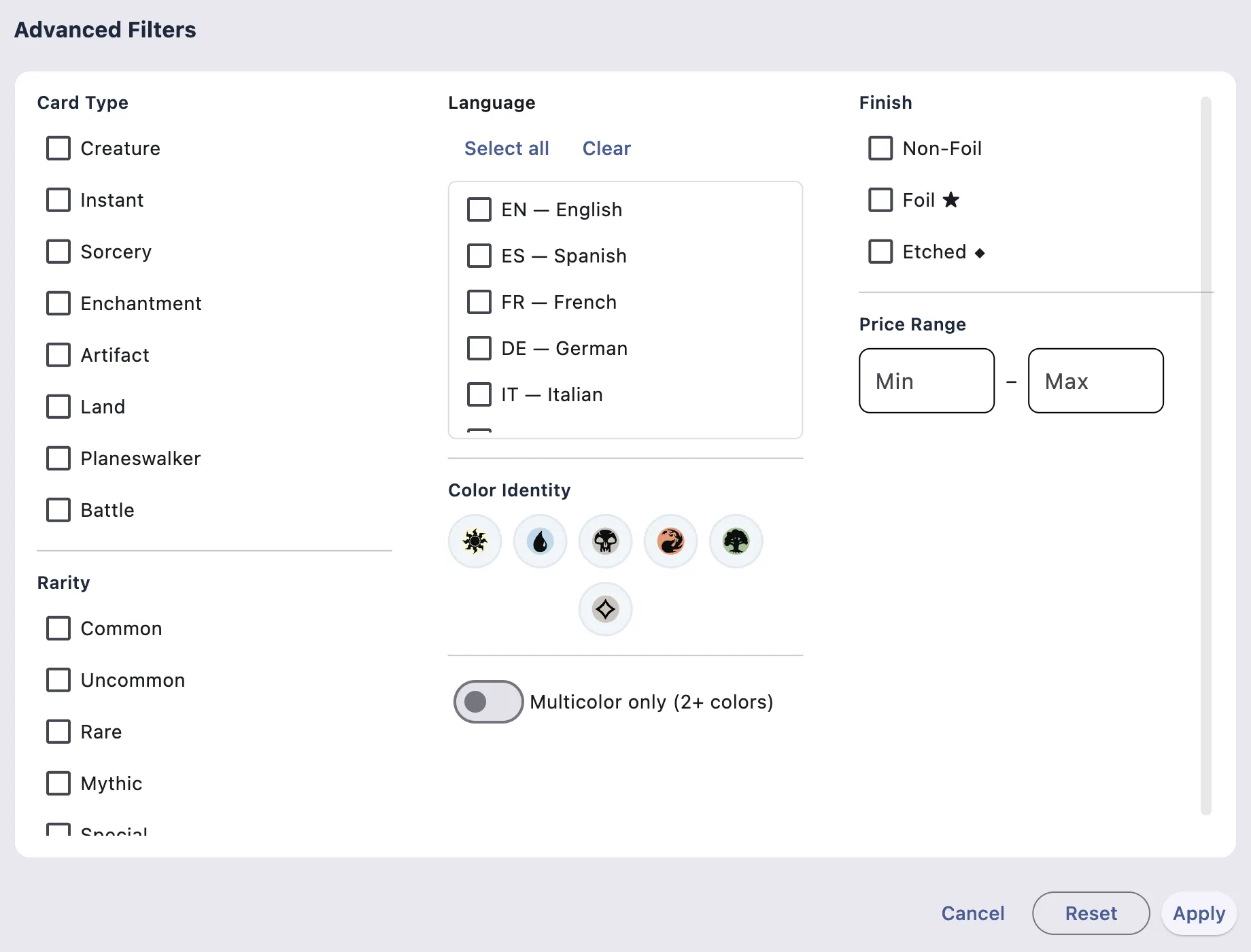
Click the Advanced Filters button in the toolbar to open the full filtering panel. From here you can combine:
- Colour identity — any combination of WUBRG + colourless
- Card type — Creature, Instant, Sorcery, Land, Enchantment, Artifact, Planeswalker, and more
- Multiple rarities at once
- Language — filter to a specific printing language
- Finish — Normal, Foil, or Etched (Inventory tab)
- Price range — min and max in your configured currency
All filters combine with AND logic. The filter pill bar below the toolbar summarises every active filter and lets you remove any one of them individually.
Applying & Clearing
| Action | How |
|---|---|
| Apply filters | Click Apply or press Enter while the dialog is open |
| Close without applying | Press Esc or click outside the dialog |
| Remove one filter | Click the ✕ on its pill in the filter bar |
| Clear all filters | Press Esc while no dialog is open |
